228 lines
8.1 KiB
Markdown
228 lines
8.1 KiB
Markdown

|
### easyink操作手册
|
|||
|
|
|
|||
|
|
[自建应用操作手册](https://www.yuque.com/docs/share/9217b462-a4c2-4d4a-97cb-48eebf800784?#hsf4v)
|
|||
|
|
|
|||
|
|
[第三方应用操作手册](https://www.yuque.com/docs/share/591b5dff-f705-413e-b167-e8ef72d519bf?#O35E2)
|
|||
|
|
|
|||
|
|
### :rocket: 项目介绍
|
|||
|
|
|
|||
|
|
该项目为easyink的前端模块之一,负责后台UI界面展示,企业基础设置、内容管理、运营功能等均在该页面操作。
|
|||
|
|
|
|||
|
|
### :factory: 关联项目
|
|||
|
|
|
|||
|
|
| 项目名 | 项目说明 | 项目地址 |
|
|||
|
|
| --------------------------------- | ------------------------------------------------------- | -------------------------------------------------------- |
|
|||
|
|
| easyink_System | easyink后端服务 | https://github.com/lianluoyi/easyink_System.git |
|
|||
|
|
| **easyink_Dashboard(当前项目)** | **easyink前端服务,主要负责后台UI界面展示** | **https://github.com/lianluoyi/easyink_Dashboard.git** |
|
|||
|
|
| easyink_Sidebar | easyink前端服务,主要负责企微客户端中的侧边栏界面展示 | https://github.com/lianluoyi/easyink_Sidebar.git |
|
|||
|
|
| easyink_middleProcessing | easyink h5前端服务,主要负责雷达、智能表单等营销活动页面的展示(非必要模块) | https://github.com/lianluoyi/easyink_middleProcessing |
|
|||
|
|
| easyink_MiniProgram | easyink 活码小程序服务,主要负责员工活码、群活码页面的展示(非必要模块) | https://github.com/lianluoyi/easyink_MiniProgram |
|
|||
|
|
|
|||
|
|
### :star2: 体验功能
|
|||
|
|
|
|||
|
|
- 建议使用谷歌浏览器访问
|
|||
|
|
|
|||
|
|
- [多租户体验入口](http://www.easyink.net) (免费体验90天)
|
|||
|
|
|
|||
|
|
- 该环境采用第三方应用+代开发应用模式,可借助[第三方应用操作手册](https://www.yuque.com/docs/share/591b5dff-f705-413e-b167-e8ef72d519bf?#O35E2)辅助体验
|
|||
|
|
|
|||
|
|
- [单租户体验入口](http://119.91.63.136:8091) 账号密码:admin/easyink2021
|
|||
|
|
|
|||
|
|
- 该环境采用自建应用模式,可借助[自建应用操作手册](https://www.yuque.com/docs/share/9217b462-a4c2-4d4a-97cb-48eebf800784?#hsf4v)辅助体验
|
|||
|
|
|
|||
|
|
### :checkered_flag: 开发
|
|||
|
|
|
|||
|
|
```
|
|||
|
|
# 克隆项目
|
|||
|
|
git clone https://github.com/lianluoyi/easyink_Dashboard.git
|
|||
|
|
|
|||
|
|
# 进入项目目录
|
|||
|
|
|
|||
|
|
# 安装依赖
|
|||
|
|
npm install
|
|||
|
|
或 yarn install
|
|||
|
|
|
|||
|
|
# 建议不要直接使用 cnpm 安装依赖,会有各种诡异的 bug。可以使用yarn安装,或者通过如下操作解决 npm 下载速度慢的问
|
|||
|
|
|
|||
|
|
# 如需修改后端地址,更改根目录中的.env.development 中的 VUE_APP_BASE_API常量
|
|||
|
|
|
|||
|
|
# 启动服务
|
|||
|
|
npm run serve
|
|||
|
|
```
|
|||
|
|
|
|||
|
|
启动服务后,使用谷歌浏览器访问http://localhost:80
|
|||
|
|
|
|||
|
|
### :checkered_flag: 发布
|
|||
|
|
|
|||
|
|
```
|
|||
|
|
# 构建生产环境
|
|||
|
|
npm run build
|
|||
|
|
```
|
|||
|
|
|
|||
|
|
### :airplane: 技术栈
|
|||
|
|
|
|||
|
|
* vue(基础框架)
|
|||
|
|
* element-ui(ui组件)
|
|||
|
|
* sass(样式语言)
|
|||
|
|
* es6(浏览器脚本语言的标准)
|
|||
|
|
|
|||
|
|
### :house: 目录结构
|
|||
|
|
|
|||
|
|
```javascript
|
|||
|
|
├─src
|
|||
|
|
│ ├─api // 后端接口定义(文件命名以接口前缀来命名)
|
|||
|
|
│ │ ├─appTool
|
|||
|
|
│ │ ├─communityOperating
|
|||
|
|
│ │ ├─conversation
|
|||
|
|
│ │ ├─customer
|
|||
|
|
│ │ ├─drainageCode
|
|||
|
|
│ │ ├─material
|
|||
|
|
│ │ ├─monitor
|
|||
|
|
│ │ ├─system
|
|||
|
|
│ │ ├─task
|
|||
|
|
│ │ ├─tool
|
|||
|
|
│ │ ├─admin
|
|||
|
|
│ │ └─......
|
|||
|
|
│ ├─assets 静态资源文件
|
|||
|
|
│ │ ├─401_images // 身份验证失败时的图片显示
|
|||
|
|
│ │ ├─404_images // 页面找不到时的默认图片
|
|||
|
|
│ │ ├─example // 示例图
|
|||
|
|
│ │ ├─icons // 菜单图标
|
|||
|
|
│ │ ├─image // 项目图片资源
|
|||
|
|
│ │ ├─index
|
|||
|
|
│ │ ├─logo // logo图标
|
|||
|
|
│ │ └─poster
|
|||
|
|
│ ├─components // 公共组件
|
|||
|
|
│ ├─directive // 自定义指令
|
|||
|
|
│ ├─layout // 布局
|
|||
|
|
│ ├─router // 路由
|
|||
|
|
│ ├─store // 全局变量
|
|||
|
|
│ ├─styles // 全局样式
|
|||
|
|
│ ├─utils // 公共方法/常量
|
|||
|
|
│ ├─views // 页面文件
|
|||
|
|
│ ├─App // 根节点
|
|||
|
|
│ ├─config // 公共配置
|
|||
|
|
│ ├─event-bus // 事件总线
|
|||
|
|
│ ├─main // 全局组件/方法挂载
|
|||
|
|
│ ├─permission // 登录权限判断
|
|||
|
|
├─public
|
|||
|
|
├─build
|
|||
|
|
├─bin // 二进制文件
|
|||
|
|
├─.env.development // 本地环境配置文件
|
|||
|
|
├─.env.production // 生产环境配置文件
|
|||
|
|
├─package // 需要安装的依赖文件及对应启动命令
|
|||
|
|
├─vue.config // 配置文件
|
|||
|
|
├─styleguide.config.js // vue-styleguidist(自动化生成公共组件文档)的配置文件
|
|||
|
|
|
|||
|
|
```
|
|||
|
|
|
|||
|
|
### :art: 系统图标
|
|||
|
|
|
|||
|
|
本系统界面中的图标存放在[iconfont图标库](https://www.iconfont.cn)里面,若需要添加图标可自己新建一个自用的项目图标库,在里面上传图标,之后再引入一个新的图标链接。具体操作如下:
|
|||
|
|
|
|||
|
|
1. 在项目图标库中上传图标
|
|||
|
|
2. 在 public/index.html中增加引入样式文件。
|
|||
|
|
|
|||
|
|
```
|
|||
|
|
<!-- 普通图标地址 -->
|
|||
|
|
<link rel="stylesheet" href="//at.alicdn.com/t/font_2736732_o4jym6emvq9.css" />
|
|||
|
|
<!-- 彩色图标地址 -->
|
|||
|
|
<script src="//at.alicdn.com/t/font_2736732_o4jym6emvq9.js"></script>
|
|||
|
|
```
|
|||
|
|
|
|||
|
|
3. 代码中使用示例如下:"icon-tool-edit"为图标库中的类名
|
|||
|
|
|
|||
|
|
```
|
|||
|
|
<!-- 普通图标 -->
|
|||
|
|
<i class="iconfont icon-tool-edit"></i>
|
|||
|
|
<!-- 彩色图标 -->
|
|||
|
|
<svg class="icon-player" :width="25" :height="25">
|
|||
|
|
<use href="#icon-player" />
|
|||
|
|
</svg>
|
|||
|
|
```
|
|||
|
|
|
|||
|
|
### :lock: 元素权限
|
|||
|
|
|
|||
|
|
本系统中会根据登录者的角色对某些元素进行权限判断,已经自定义了指令,具体示例如下:
|
|||
|
|
|
|||
|
|
```
|
|||
|
|
v-hasPermi="['enterpriseWechat:view']"
|
|||
|
|
```
|
|||
|
|
|
|||
|
|
### :page_facing_up: 文档
|
|||
|
|
|
|||
|
|
#### 一、公共组件文档
|
|||
|
|
|
|||
|
|
1. 简介
|
|||
|
|
|
|||
|
|
使用了工具 [Vue Styleguidist](https://vue-styleguidist.github.io/) 自动化生成公共组件文档。
|
|||
|
|
|
|||
|
|
2. 使用说明
|
|||
|
|
目前配置的是将src/components中的 *.vue组件生成文档,注释使用方式可参考src/components/AddTag.vue组件。( 官方说明文档地址:https://vue-styleguidist.github.io/docs/Documenting.html#code-comments )
|
|||
|
|
|
|||
|
|
3. 文档预览需执行以下命令
|
|||
|
|
|
|||
|
|
```
|
|||
|
|
# 文档本地运行
|
|||
|
|
npm run styleguide
|
|||
|
|
# 文档打包部署
|
|||
|
|
npm run styleguide:build
|
|||
|
|
```
|
|||
|
|
|
|||
|
|
默认通过 http://localhost:6060 访问组件预览效果地址。
|
|||
|
|
|
|||
|
|
#### 二、皮肤组件文档
|
|||
|
|
|
|||
|
|
1. 简介
|
|||
|
|
|
|||
|
|
该系统支持不同主题色的皮肤,其中element ui对应的组件主题色已经进行全局设置,其余自定义组件需要自己设置颜色,因此封装了部分常用的皮肤组件/类名,用于自定义组件的皮肤颜色的便捷设置。
|
|||
|
|
|
|||
|
|
2. 使用说明
|
|||
|
|
|
|||
|
|
a. 文字颜色
|
|||
|
|
|
|||
|
|
使用类名 **theme-text-color**
|
|||
|
|
|
|||
|
|
```
|
|||
|
|
<div class="theme-text-color">文字</div>
|
|||
|
|
```
|
|||
|
|
|
|||
|
|
**使用效果:**
|
|||
|
|
|
|||
|
|
b. 列表选中色
|
|||
|
|
|
|||
|
|
使用类名 **theme-list-hover-color**
|
|||
|
|
|
|||
|
|
```
|
|||
|
|
<li :class="['theme-list-hover-color', isSelected ? 'theme-list-selected-color' : '']">
|
|||
|
|
列表项
|
|||
|
|
</li>
|
|||
|
|
```
|
|||
|
|
|
|||
|
|
**使用效果:**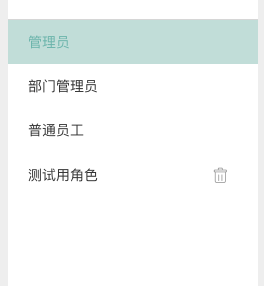
|
|||
|
|
|
|||
|
|
c. 列表移入色
|
|||
|
|
|
|||
|
|
使用类名 **theme-list-selected-color**(示例同上)
|
|||
|
|
|
|||
|
|
**使用效果:**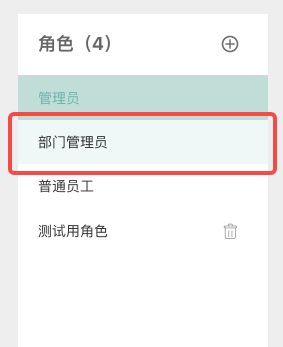
|
|||
|
|
|
|||
|
|
d. 边框颜色
|
|||
|
|
|
|||
|
|
```
|
|||
|
|
使用BorderColor组件(无需单独引入,已在main.js中定义,全局可用)
|
|||
|
|
<BorderColor all-border class="tag-item inoneline theme-text-color">标签名</BorderColor>
|
|||
|
|
```
|
|||
|
|
|
|||
|
|
**使用效果:**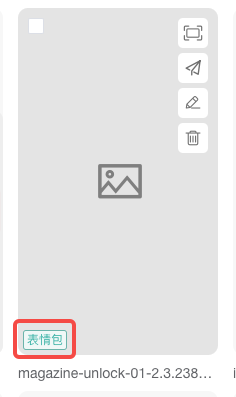
|
|||
|
|
|
|||
|
|
e. 空心按钮
|
|||
|
|
|
|||
|
|
使用类名 **btn-reset**
|
|||
|
|
|
|||
|
|
```
|
|||
|
|
<el-button class="btn-reset" @click="resetQuery()">重置</el-button>
|
|||
|
|
```
|
|||
|
|
|
|||
|
|
**使用效果:**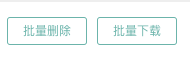
|